


Download ScreenPlay – Free Cross‑Platform Desktop Customization Tool
Overview
ScreenPlay is a free, open‑source desktop customization software created by developer Elias Steurer. Positioned as a lightweight alternative to commercial solutions like Wallpaper Engine, ScreenPlay gives Windows, macOS, and Linux users a powerful way to transform their desktop environment with static images, animated wallpapers, and interactive widgets. The program supports High Dynamic Range (HDR) content, 4K resolutions, and ultra‑wide monitors straight out of the box, making it an excellent choice for gamers, designers, and anyone who wants a polished, modern look without paying a subscription fee.
The heart of ScreenPlay lies in its integration with the Steam Workshop, which hosts a growing library of community‑created wallpapers and widget packs. Users can also import their own media files—videos, GIFs, or images—and apply them instantly. The built‑in QML widget wizard lets you design custom system‑monitoring widgets that display CPU, RAM, and storage usage in real time. While GPU and network statistics are not yet supported, the current feature set already covers the most common personalization needs.
Because the software is released under an open‑source license, developers can contribute new effects, fix bugs, or even fork the project to suit niche workflows. This transparency translates into frequent updates, a vibrant community, and a level of security that closed‑source competitors often lack. Whether you’re looking for a subtle background change or a dynamic, data‑driven desktop, ScreenPlay offers a flexible, free platform that works across multiple operating systems.
Core Features & Widget System
- Free, open‑source desktop personalization for Windows, macOS, and Linux.
- Native support for HDR, 4K, and ultra‑wide monitors with refresh rates up to 144 Hz.
- Seamless Steam Workshop integration for easy access to thousands of community wallpapers.
- Ability to import personal media files (videos, GIFs, images) as live wallpapers.
- Built‑in QML widget wizard for creating custom system‑monitoring widgets.
- Pre‑installed widgets for CPU, RAM, and storage usage with real‑time graphs.
- Lightweight engine that runs in the background with minimal CPU overhead.
- Open API for developers to publish new wallpapers or widget packs.
- Automatic updates via GitHub releases, ensuring you always have the latest features.
- Secure sandboxed execution to prevent malicious code from affecting the host system.
ScreenPlay’s widget system is one of its most compelling differentiators. Using the QML (Qt Modeling Language) wizard, users can drag‑and‑drop UI components, set data bindings to system counters, and preview the widget before applying it to the desktop. The resulting widgets are fully interactive—you can click to open the Task Manager, resize the widget, or even chain multiple widgets together to create a custom dashboard.
Beyond widgets, the live‑wallpaper engine leverages GPU acceleration to render high‑frame‑rate animations without draining battery life on laptops. When a wallpaper includes audio, ScreenPlay respects the system’s volume settings and offers a mute toggle directly from the context menu. For users who prefer static backgrounds, the application can automatically switch between a set of images based on time of day, creating a dynamic yet subtle visual experience.
All features are designed with performance in mind. ScreenPlay runs as a background service that only activates when a wallpaper or widget is visible, and it gracefully pauses when the user switches to a full‑screen game or video. This careful resource management ensures that the tool remains invisible in daily use while still delivering eye‑catching visual effects when you want them.
Installation, Setup & Compatibility
Step‑by‑Step Installation Guide
Getting started with ScreenPlay is straightforward. Follow these steps to download and install the application on your preferred platform:
- Visit the official GitHub releases page at github.com/SteuerScreenplay/ScreenPlay and download the installer that matches your OS (Windows . exe, macOS . dmg, or Linux . AppImage).
- Run the installer. Windows users will see a standard setup wizard; macOS users simply drag the app to the Applications folder; Linux users make the AppImage executable with
chmod +x ScreenPlay‑x86_64.AppImageand then launch it. - During the first launch, ScreenPlay will ask for permission to access your graphics hardware. Accept the request to enable GPU‑accelerated wallpaper rendering.
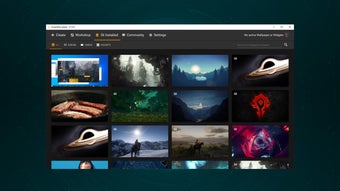
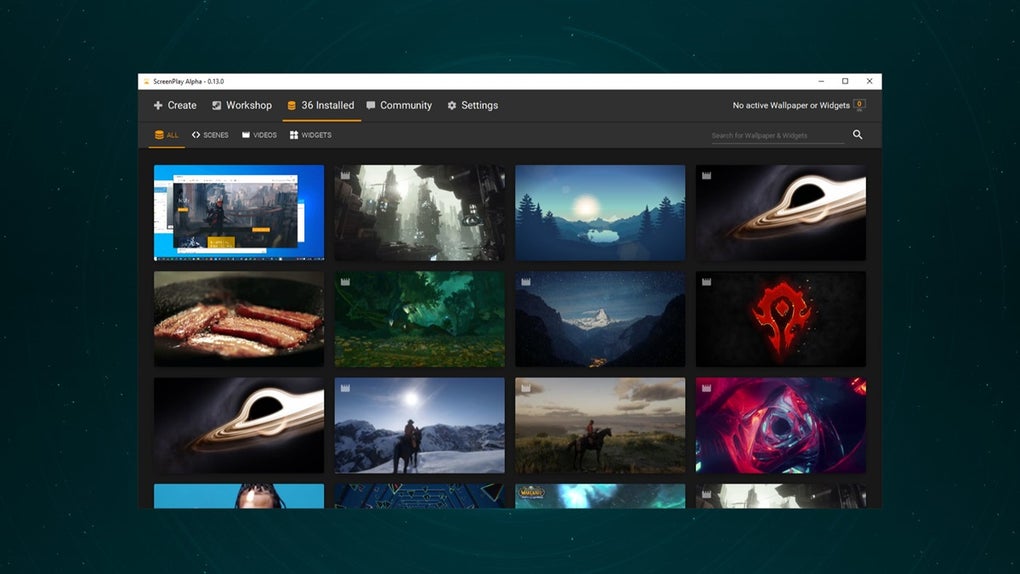
- After the initial setup, the main dashboard appears. From here you can browse the Steam Workshop, import personal media, or open the widget wizard.
- To enable automatic updates, navigate to Settings → Updates and toggle “Check for updates on startup.” The application will then pull the latest version from the GitHub repository.
Cross‑Platform Compatibility
ScreenPlay runs natively on the three major desktop operating systems:
- Windows 10, 11 (64‑bit) – Full support for DirectX 11/12 rendering, HDR, and high‑refresh‑rate monitors.
- macOS 12 Monterey and later (Intel & Apple Silicon) – Utilizes Metal for efficient GPU usage, with native support for Retina displays and external 4K monitors.
- Linux (Ubuntu 20.04+, Fedora 33+, Arch) – Distributed as an AppImage that bundles Qt 6, providing consistent behavior across different desktop environments (GNOME, KDE, XFCE).
The application automatically detects connected displays and offers per‑monitor configuration. You can assign a different wallpaper or widget set to each screen, making multi‑monitor setups look cohesive. System requirements are modest: a GPU that supports OpenGL 4.5 (or Metal on macOS), at least 2 GB of RAM, and a modern 64‑bit CPU. Because ScreenPlay is open source, it can be compiled from source on other Linux distributions if needed.
For users concerned about security, the installer is signed with a GPG key that matches the one published on the project’s GitHub page. This ensures the download has not been tampered with. Additionally, the sandboxed runtime isolates wallpaper processes from the main OS, reducing the risk of malicious code execution.
Pros, Cons, Frequently Asked Questions & Final Verdict
Pros & Cons
- Pros
- Completely free and open‑source, no hidden fees.
- Native HDR, 4K, and ultra‑wide monitor support.
- Rich Steam Workshop library for instant wallpaper discovery.
- Powerful QML widget wizard for custom system monitors.
- Low CPU/GPU overhead, ideal for gaming rigs.
- Cross‑platform support (Windows, macOS, Linux).
- Cons
- No built‑in GPU or network monitoring widgets (still in roadmap).
- Linux version relies on AppImage, which some users find less integrated.
- Initial learning curve for QML widget customization.
Frequently Asked Questions
Is ScreenPlay really free, or are there hidden costs?
ScreenPlay is 100 % free. All features, including the Steam Workshop integration and widget wizard, are available without any subscription or in‑app purchases. The project is funded through donations and community contributions.
Can I use ScreenPlay on a laptop with limited battery life?
Yes. ScreenPlay is designed to pause animation rendering when a full‑screen application (like a game or video) takes focus, and it uses GPU acceleration efficiently. Battery impact is minimal compared to static wallpapers.
How do I add my own video as a live wallpaper?
Open the ScreenPlay dashboard, click “Add Media,” and select any video file (MP4, AVI, MKV). The app will automatically convert the video to a format suitable for real‑time playback and add it to your wallpaper list.
Does ScreenPlay support multiple monitors with different wallpapers?
Absolutely. During setup, ScreenPlay detects each connected monitor and lets you assign a unique wallpaper or widget set per screen. You can also sync wallpaper changes across monitors if you prefer a unified look.
Is there a roadmap for adding GPU and network monitoring widgets?
The development team has listed GPU and network widgets as upcoming features. Community contributions are welcomed, and the GitHub issue tracker shows active discussion about implementing these widgets in the next major release.
Conclusion – Should You Download ScreenPlay?
ScreenPlay delivers a compelling mix of performance, visual quality, and customization flexibility—all without asking for a single cent. Its HDR‑ready engine, 4K and ultra‑wide support, and seamless Steam Workshop integration put it on par with commercial rivals, while the open‑source nature guarantees transparency and rapid updates. The QML widget wizard empowers power users to build personalized dashboards that keep system stats front and center, a feature rarely found in free alternatives.
If you value a lightweight, secure, and community‑driven desktop personalization tool, ScreenPlay is a strong candidate. The minor drawbacks—lack of GPU monitoring and a slightly less integrated Linux installer—are outweighed by the breadth of features already available. For anyone looking to freshen up their workspace, experiment with live wallpapers, or build custom widgets, the best first step is simply to download and give it a try.
Ready to transform your desktop? Click the download link below, follow the quick installation guide, and start exploring the vibrant world of ScreenPlay wallpapers and widgets today.







